
Friday, 14 August 2009

Google Reader's "Send to" Feature

Google Reader's "Send to" Feature: "Google Reader added a new feature that lets you share posts in other services: Twitter, Facebook, Digg. The feature is opt-in, so you need to go to the settings page, click on the 'Send to' tab and pick your favorite services.


After selecting an item, use the keyboard shortcut Shift+T to quickly open the 'send to' menu. Google Reader opens a new tab when you choose one of the 'send to' options and most of the necessary information it's already pre-filled.


If your favorite service is not included in Google Reader's list, you can add it from the settings page by clicking on 'Create a custom link'. Here's how to add a 'send to' option for Google Bookmarks.

Name: Google Bookmarks
URL: http://www.google.com/bookmarks/mark?op=edit&output=popup&bkmk=http://googlesystem.blogspot.com/2009/08/google-readers-send-to-feature.html&title=Google Reader's 'Send to' Feature
Icon URL: http://www.google.com/favicon.ico

And here's how to use AddToAny, a service that lets you select between many social sites.

Name: Add to Any
URL: http://www.addtoany.com/share_save?linkurl=http://googlesystem.blogspot.com/2009/08/google-readers-send-to-feature.html&linkname=Google Reader's 'Send to' Feature
Icon URL: http://www.addtoany.com/favicon.ico

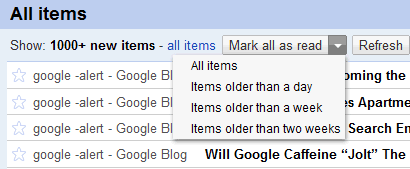
Google Reader added two other options: you can now subscribe to sites added to your contacts' profiles and mark as read items older than a day, a week or two weeks. The second option is useful if you have a lot of unread items and you only want to read the recent news. As you probably know, Google Reader automatically marks as read the items that are older than a month and this can't be changed.


"

Wednesday, 12 August 2009

Restarting a list of servers

Windows 2003 has an enhanced shutdown command which allows shutdown of
multiple servers.
Running shutdown -i brings up a dialog box where you can enter the
list of servers.
Remember it's always good practice to put shutdown comments the mean
something so looking back in the future you'll know what was done.

Posted via email from Pio's work related musings

Saturday, 8 August 2009

Resolving port conflicts

If you ever need to find out which process is holding a port open use:
netstat -b

Posted via email from Pio's work related musings

Posterous

Just found a new blogging site called posterous.  It's main feature is making blogging easy by having entries all sent via email.  While some people are used to having a web connection all the time, I find often I'm out and about and just want to do something quick and simple on my phone so being able to upload posts, photos, videos somewhere just by sending an email from the gmail client on my phone sounds great.

The only downside is it posts signatures too :)

Lets see if this works then...

Posted via email from Pio's work related musings

Thursday, 14 May 2009

Using ESEUTIL to recover and repair exchange databases with dirty shutdown state


There are plenty of guides on using eseutil but getting the parameters right always seems to be a case of trial an error, so here's a quick howto:

1) Copy all the original database and log files to somewhere safe. Then also copy them into a working directory. Eseutil will modify the files in situ so if it goes wrong you don't want your original files modified.

You need to have a copy of the database files (*.edb and *.stm) plus the transaction logs (Exx*.log where xx is a number relating to the information store). The location of the files is available from exchange system manager, but you really should know where they all are anyway.

I'm going to assume the temp directory for the database files is e:\temp\data and they're called exchdb.edb, exchdb.stm. If they reside in the 1st storage group, the transaction logs will be called E00.log (this is the most recent base file) and E00xxxx.log etc (these are the old logs). Lets assume these are copied to e:\temp\logs. You need to replace these with your own paths/filenames of course.

2) Check the database state and expected log files with

eseutil.exe /mh e:\temp\data\exchdb.edb

The output will show a line State: which will be either clean or dirty shutdown. If it's clean, then you don't need this article :)

It will also show which logs are required e.g. which hadn't yet been played into the database when the dirty shutdown occured. If you have any missing then you will have lost email. This generally only occurs if you lost a log drive and have replicated copies of the logs you can use.

3) "Recover" the database. This replays missing transaction logs into the database file - run:

eseutil.exe /r E00 /d"e:\temp\data\exchdb.edb"

You might receive an error that there is an outstanding database attachment. In this case use the /i switch in the command

eseutil.exe /r E00 /d"e:\temp\data\exchdb.edb" /i

4) recheck the database state with the command in 2). If it still shows dirty shutdown you need to repair the database with:

eseutil /p e:\temp\data\exchdb.edb

5) Recheck the database once more and it should show clean shutdown. At this point you should defrag the database

eseutil /d e:\temp\data\exchdb.edb

6) The file is now in a clean state and is ready to be put back into exchange so copy it back to the original location on your exchange server but don't yet mount the file. The last step before mounting the file is to get rid of any remaining errors using isinteg.exe. This tool requires the database to be in the original location on the original exchange server. It needs to be run several times until it no longer reports any errors.

7) Once the database file has no more errors you can now remount it in exchange.

Wednesday, 11 February 2009

Verifying that bulk file copy

If you copy a bunch of files/folders from one disk to another and want to verify they have all copied correctly without corrupting, you can use cygwin and md5sum to verify them.

In cygwin run the following commands:

cd /cygdrive/[drive letter]/
[path]
e.g. cd /cygdrive/c/test. This is the source path to generate the MD5 hashes from.

find . -type f 2>/dev/null -exec md5sum {} \; >/cygdrive/c/temp/test.md5
This generates the md5 file which is a plain text file containing the MD5 hashes. Depending on the size of files to verify this might take a while. There may also be issues with files over 2GB in size (I haven’t tested this).

cd /cygdrive/[drive letter]/[path]
e.g. cd /cygdrive/d/destination. This is the destination where you copied the files to.

md5sum –c /cygdrive/c/temp/test.md5 | grep –i failed >/cygdrive/c/temp/test-result.log
This checks the copied files against the md5 hashes and filters the output through grep to only include failed files. c:\temp\test-result.log will contain the results of the verify.
The result is either “ok” or “failed” but you’re probably only interested in the failed files.

Tuesday, 30 September 2008

Wake on LAN problems - Dell 2950 servers and Broadcom NICS

Although I've been using vmware for over 3 years through various incarnations, I've only just been in a position to exploit the power-saving features in v3.5. 

At first glance it looks pretty straight forward - click the "enter standby" option and sit back and watch. No.

First off, you need to have Wake on LAN (WOL) supported on your vmotion NIC.   This isn't necessarily something you think of when setting up the patching of the virtual server - Intel PT1000 Quad Port NICs only support WOL on the first port (Dual ports also).  Others in the range might be different, but the VT1000 NICs have their own issues in vmware depending on the version of vmware installed.

Most of the servers I work on are Dell x9xx series which have Broadcom 5708 onboard NICs.  Looking in Virtual Center at the NIC configuration shows whether VMware thinks WOL is available.  I was a bit confused when I found for some servers it was available and for others it wasn't.  Dell support went through the usual steps - update the firmware, update the NIC firmware, etc. - to no avail.

I tested the WOL feature anyway with the AMD Magic Packet utility and the MAC address of the NIC and lo! it woke up.  Curiouser and curiouser.

After more research by Dell, one of their engineers discovered source of the issue (hurrah!) in the version of the Ethernet Controller Hardware.  an lspci command (run as root) reveals the version number:

05:00.0 Ethernet controller: Broadcom Corporation Broadcom NetXtreme II BCM5708 1000Base-T (rev 11)

Rev 11 is the culprit and Rev 12 servers correctly show WOL available in vmware.  Dell have escalated the issue to vmware so hopefully there will be some kind of resolution soon.

So in summary:
  1. Make sure vmotion is enabled on a NIC that supports WOL
  2. Check your broadcom NICs are Rev12 and above.
  3. Put your Host in a Cluster
  4. At least one other Host in the Cluster must be on (this does the wakeup on the others that are in standby)
  5. Enable WOL in the NIC boot bios

Blogged with the Flock Browser